
Short answer: photograph each receipt, let the receipt extractor read merchant, date, total, tax and line items into editable fields, copy the values into a ledger sheet, and keep one bookkeeping file. The tools do not pipe into each other automatically — the middle is a paste, and that is fine: pasting is also your checkpoint. Below is the full workflow performed end-to-end on two synthetic receipts, with every input, output and the final template file. One honest scope note up front: this is data entry assistance, not tax or accounting verification, and nothing here posts to real books or contacts any third party.
Why this workflow (and why not a fancier one)
We compared three candidate chains against what the tools can actually do: receipts → spreadsheet, survey feedback → categories, and product fact sheet → store description. The receipt chain won for three practical reasons: it exercises two different kinds of tools (an AI extraction step and a local cleanup step) so the copy step between them is a real checkpoint; the output contains amounts that can be re-checked mechanically against the receipt's own printed arithmetic; and it ends in a deliverable (a ledger file) rather than prose that has no provably correct answer. The other two candidates produce text with no ground truth to verify against, which makes an honest end-to-end test impossible.
The demo materials (synthetic, published, reusable)
Both receipts were drawn for this guide and are marked as demos on the paper itself — no real merchant, no real transaction. Receipt A is an English print-shop receipt with subtotal + 8.5% tax; receipt B is a Chinese stationery wholesaler slip with one printed total and no tax line. Every number was chosen so the arithmetic is exact, and the expected values were registered before the extraction ran.
- Receipt A — print shop, 3 line items, subtotal 75.35 + tax 6.40 = 81.75 — Download sample · 54638 bytes
- Receipt B — Chinese stationery wholesaler, 4 items, printed total 105.30, no tax line — Download sample · 61085 bytes
- Pre-registered expected values for both receipts — Download sample · 1362 bytes
- Actual extractor CSV export for receipt A (from the real run) — Download sample · 231 bytes
- Actual extractor CSV export for receipt B (from the real run) — Download sample · 254 bytes
- The cleaned two-row ledger after the paste + dedupe step — 10 columns incl. Currency (receipt A: unknown; receipt B: CNY) — Download sample · 343 bytes
- Ledger template (XLSX): Ledger sheet with a Currency column + per-currency Summary; blank/unknown-currency rows are excluded from currency totals; formulas verified in Excel — Download sample · 7312 bytes
- Same template headers as plain CSV (UTF-8 BOM, Excel-friendly) — Download sample · 820 bytes
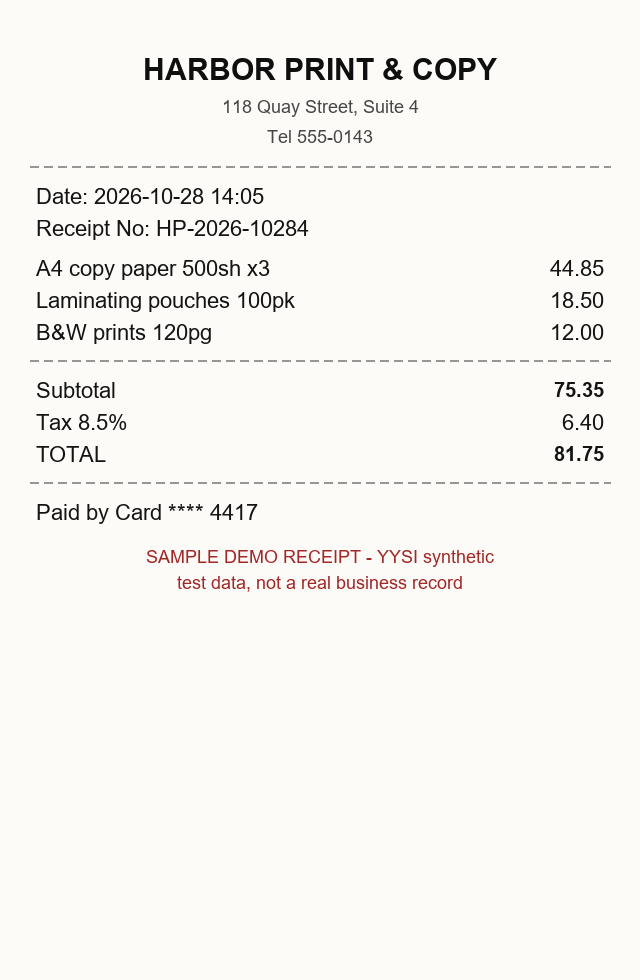
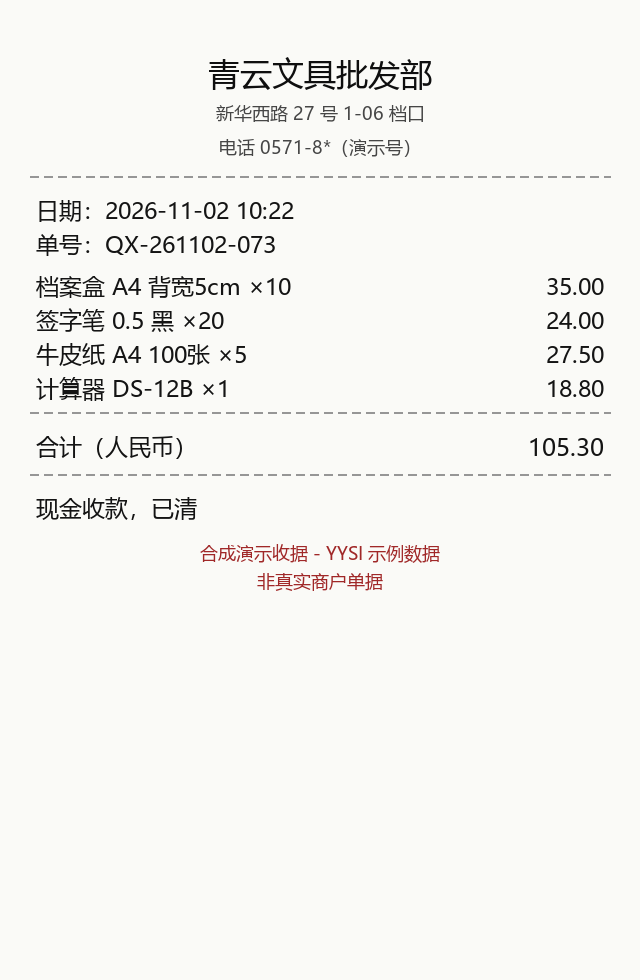
Step 1 — extract each receipt's fields
- Open the extractor and add one photo. Go to the receipt extractor and drop in a photo. It accepts JPG/PNG/WebP up to 10 MB and downscales in your browser to 2000 px — the image is sent for AI field extraction (this tool needs a free account; each receipt costs one of your site-wide trials).
- Optionally hint the currency. Type a currency hint (for example
USDorCNY). In our real runs the hint helped receipt B getCNY; receipt A printed no currency at all and the tool left the field empty and flagged it uncertain rather than guessing from the hint — exactly the behavior you want. - Run the extraction. Press the extract button. In our runs this took roughly 15 seconds. Fields appear on the right: merchant, date, currency, subtotal, total, tax, payment method, receipt number, plus line items.
- Read the program check line. The tool adds up the line items itself (in the browser, not with the model) and compares the sum to the printed subtotal/total. Receipt A: "line items sum to 75.35 — consistent". Receipt B: "line items sum to 105.3 — consistent". If you see the warning variant, some number was misread — fix it before exporting.
- Correct anything that looks off. Every value is click-editable. Compare against the photo — the tool itself says it is not accounting verification.
- Download the CSV. Download CSV gives a UTF-8 BOM file: one header row, one fields row, then item rows. Save it next to the photo.
What the real run produced, checked against expectations
| Field | Receipt A: expected → extracted | Receipt B: expected → extracted |
|---|---|---|
| Merchant | HARBOR PRINT & COPY → same ✓ | 青云文具批发部 → same ✓ |
| Date | 2026-10-28 → same ✓ (printed time 14:05 was dropped) | 2026-11-02 → same ✓ (time dropped) |
| Currency | not printed → empty + flagged uncertain ✓ | CNY → same ✓ |
| Subtotal | 75.35 → same ✓ | not printed → empty ✓ |
| Tax | 6.40 → 6.4 ✓ (numeric equal) | not printed → empty ✓ |
| Total | 81.75 → same ✓ | 105.30 → 105.3 ✓ |
| Payment | Card **** 4417 → same ✓ | 现金(已清)→ 现金 ✓ (shortened, still accurate) |
| Receipt no. | HP-2026-10284 → same ✓ | QX-261102-073 → same ✓ |
| Line items | 3 of 3, amounts exact ✓ | 4 of 4, amounts exact ✓ |
A deterministic script re-checked every exported value against the pre-registered truth file: all fields pass for both receipts. Two honest details worth noticing: times were dropped from dates (you may want them), and the shortened payment note on receipt B (现金 instead of 现金(已清)) is still accurate but loses the "paid in full" nuance — read the fields, don't trust them blindly.
Step 2 — paste into a working sheet and clean it
The extractor's CSV is a receipt record (fields row + item rows), not a ledger row. For bookkeeping you want one row per receipt. Copy the field values — including Currency — into a simple sheet; where the extractor left Currency empty/uncertain, keep that status (we write unknown, never a guess) — we simulated a realistic paste with a double-pasted row and a stray blank line — then let the CSV cleaner tidy it: enable trim, drop empty rows and dedupe, press Apply, then export.
| Paste sheet in | Cleaner output |
|---|---|
| header + 3 data rows + 1 blank line (5 lines) | 3 rows — header + 2 unique rows (Date, Merchant, Category, Currency, Payment, Subtotal, Tax, Total, Receipt no., Notes) |
| duplicate of receipt A's row | removed by dedupe |
| leading/trailing spaces | trimmed |
| export | UTF-8 BOM CSV — opens in Excel with Chinese intact |
One correction to disclose: the 2026-11-11 real run cleaned a 9-column sheet (no Currency column); after the currency fix described in step 3, the published ledger-cleaned.csv carries 10 columns — the Currency values come from the extraction fields (receipt A: unknown, receipt B: CNY) and receipt A's Notes keep the not-printed warning. The original 9-column output is preserved unchanged in the private run log.
The cleaned file is the one to keep as your master data; the downloadable ledger-cleaned.csv above is this exact output.
Step 3 — put the rows in the bookkeeping template
The template is an ordinary XLSX with two working parts: a Ledger sheet (Date, Merchant, Category, Currency, Payment, Subtotal, Tax, Total, Receipt no., Notes; 40 formatted rows) and a Summary sheet that keeps currencies apart: it sums per currency with SUMIFS/COUNTIFS, lists rows whose Currency is blank or unknown in their own row — excluded from every currency total until you confirm the currency — and totals only the confirmed currencies. A second block totals categories within one selected currency (a yellow input cell, default CNY) and shows how many rows fall outside it. Paste your cleaned rows under the headers, fill in a Currency per row, pick a category, and the summaries recalculate.
With the two demo rows the corrected template reports: CNY 1 entry / 105.30, no other currency rows, unknown/blank 1 entry / 81.75 listed as unconfirmed — NOT summed into any currency total — and under the CNY scope: Office supplies 105.30 with 1 row outside the selected currency. Desktop Excel recalculated these values via automation and they match the pre-registered expectations. The formulas are ordinary functions, not macros; the file contains no code.
An honesty note about the first version of this template: its Summary added receipt A's 81.75 — currency unknown, honestly left blank by the extractor — to receipt B's CNY 105.30 and printed 187.05 as "the total". The arithmetic was correct and the currency scope was not: those amounts are not comparable until receipt A's currency is confirmed. The per-currency layout above is the 2026-11-12 correction; if you downloaded the earlier file, replace it.
unknown is fine, but rows without a confirmed currency never enter a currency total — confirm first, then sum. The Summary sums the Total column, which is the number bookkeeping actually wants.Checklist before you rely on a row
- Program check line visible and green (items sum consistent) — or you manually fixed the mismatch
- Merchant and date compared against the photo (the check does not catch these)
- Total equals the printed total, character for character
- Currency confirmed (or consciously kept
unknown— the row then stays out of currency totals) - Category picked from the list so the Summary counts the row
- Cleaned sheet kept as master data; raw exports kept next to the photos
- Anything the tool flagged as uncertain resolved or annotated in Notes
Limits of this workflow
- One receipt per extraction task; a 3-receipt lunch run is three tasks (three trials).
- AI extraction can misread — the arithmetic check is a safety net, not a guarantee (wrong merchant passes all checks).
- The paste between tools is manual by design; there is no auto-piping, no automatic posting to accounting software, and this guide does not create one.
- Receipt vs 发票: in Chinese bookkeeping, a 发票 (fapiao) is a tax document issued through the official system, while a 收据 is a plain receipt. The extractor reads what is printed on either, but a fapiao's official code/number fields may need manual entry, and fapiao compliance checks are outside anything described here.
- All demo data is synthetic; do not upload receipts with data you would not share — check the tool's privacy note before using real receipts (the extractor processes the image for extraction; anything you would not hand to a service, do not upload).
Related: the cleanup step in detail — CSV garbled Chinese in Excel; if a table photo instead of a receipt — image table to Excel, tested; and if your JSON config breaks while automating this — fix invalid JSON.
Sources & verification
- YYSI receipt extractor — the AI field-extraction step used in this walkthrough — Sources checked 2026-11-11
- openpyxl — the open-source library used to generate the downloadable XLSX template — Sources checked 2026-11-11
Sources checked Every step in this walkthrough was actually performed on 2026-11-11: two original synthetic receipt images were run through the live YYSI receipt extractor with a standard test account (2 of its 3 free trials; no other accounts touched), the downloaded CSV exports were checked field-by-field against pre-registered truth values with a deterministic script (outputs/verify-extraction.json in the private run log), the pasted sheet was cleaned in the real csv-cleaner, and the XLSX template's SUMIF/COUNTIF formulas were recalculated in desktop Excel via automation and matched pre-computed values. The receipts are synthetic originals made for this guide — no real business, no real amounts. The receipt extractor is data-entry assistance, not tax or accounting verification. Correction of 2026-11-12 (raw AI outputs and the pre-registered truth untouched): the first template's Summary summed receipt A's 81.75 — whose currency the extractor had honestly left empty/uncertain — together with receipt B's CNY 105.30 into a single 187.05 total; the arithmetic was right but the currency scope was not. The published template and cleaned ledger now carry a Currency column, the Summary sums per currency (SUMIFS/COUNTIFS), rows with blank or unknown currency are listed separately and excluded from every currency total, and the category table is scoped to one confirmed currency. The corrected formulas were recalculated in desktop Excel via COM against a new known-answer case that includes the unknown-currency row (b-excel-com-verify in the 2026-11-12 remediation run directory).
Read our editorial standards or send corrections to [email protected].