
The short answer
A PDF page holds either real text (a text layer) or just a picture of text (a scan). Extraction tools read only the first kind; OCR reads the second. So "the PDF has no text" is almost always one of four situations, and each has a different next step. All three sample files below are original YYSI-made test documents — download them and reproduce every result in this guide.
| Symptom | Likely cause | Do this | Tool |
|---|---|---|---|
| Text copies fine but comes out in a jumbled order | Text layer; the extractor reads in visual row order (multi-column, tables) | Extract, then fix the order while proofreading | PDF to text |
| Nothing selects; pages come back empty | Scan or photo pages — no text layer at all | Render the scan pages to images, then OCR page by page | PDF to images + Image to text |
| "Password-protected" error | Encrypted file | Ask the sender for the password or an unlocked copy | — |
| "Not a readable PDF" error | Damaged or incomplete file | Get a fresh copy from the source | — |
Case 1: the file has a text layer — extraction works, order may not
Our report-text.pdf has two pages: English text with a two-column section and a price table, then a Chinese page with the same elements. Extraction pulled every word out — page 1 came back as 721 characters, page 2 as 260, and the tool reported Extracted text from 2 pages (981 B). The full download was a UTF-8 TXT with a page marker for each page (1,356 bytes).
But look at what happened to the two-column section. The extractor reads items left to right along each visual row, so left and right columns merged into single lines:
Left column: maintenance  Right column: inspections
A. Filter replaced on 12 August.  D. Brake pads measured at 6 mm.
B. Coolant topped up, no leaks.  E. Lights and horn tested, pass.
C. Tyre pressure set to 2.4 bar.  F. Next visit booked 30 October.
Every word is there — but the reading order is wrong. This is the trap behind "I could select the text, so why does the copy look broken?" Selectable does not mean correctly ordered. Tables keep their rows but lose their cell structure: Air filter 2 14.50 29.00 is readable, yet nothing marks where one column ends and the next begins.
Total 105.25; a thirty-second check (29.00 + 39.20 + 37.05) confirms it is right. In a real invoice, a merged row like Total 15.25 105.25 could put the wrong number in your report.The Chinese page extracted cleanly: lines stayed intact (库存盘点示例(合成数据), 冷却液(1升), 丁.胎压恢复正常。 all verbatim). Chinese works as well as English when the text layer exists — the same two-column and table caveats apply.
Case 2: it's a scan — the honest empty result
Our scan-no-text.pdf looks identical in a reader, but each page is just a photo of text (that is what a scanned document is — Adobe's own help defines scans as images of text that only OCR can turn into editable words). Extraction came back with:
Extracted text from 2 pages (0 B). 2 page(s) had no extractable text —
probably scans. This tool does not OCR; for screenshots use the AI
image-to-text tool.
Each page card said No extractable text on this page (probably a scan or photo). and its copy button stayed disabled. That is the correct behavior: a tool without OCR must say so instead of guessing. If your PDF produces empty pages like this, no amount of retrying extraction will help — go to the OCR route below.
Case 3: mixed files — judge page by page
mixed.pdf has text pages around a scan: page 1 (English cover, 197 characters extracted), page 2 (a photo of a receipt, nothing extractable), page 3 (Chinese notes, 91 characters). The tool summarized it as Extracted text from 3 pages (288 B). 1 page(s) had no extractable text — probably scans.
This is the most common real-world shape: a contract with a scanned signature page, a report with a photographed appendix. The extraction result itself tells you which pages need OCR — you don't have to guess. Handle the file page by page: extract everything first, note which pages came back empty, then OCR just those pages.
The page-by-page OCR route (tested end to end)
YYSI has no one-click whole-file OCR, and we won't pretend otherwise. The workflow that works today is per page, and we ran it end to end on page 2 of the mixed file and page 2 of the scan file:
- Render the scan page to an image. Open PDF to images, add the PDF, enter just the scan page in Pages (we used
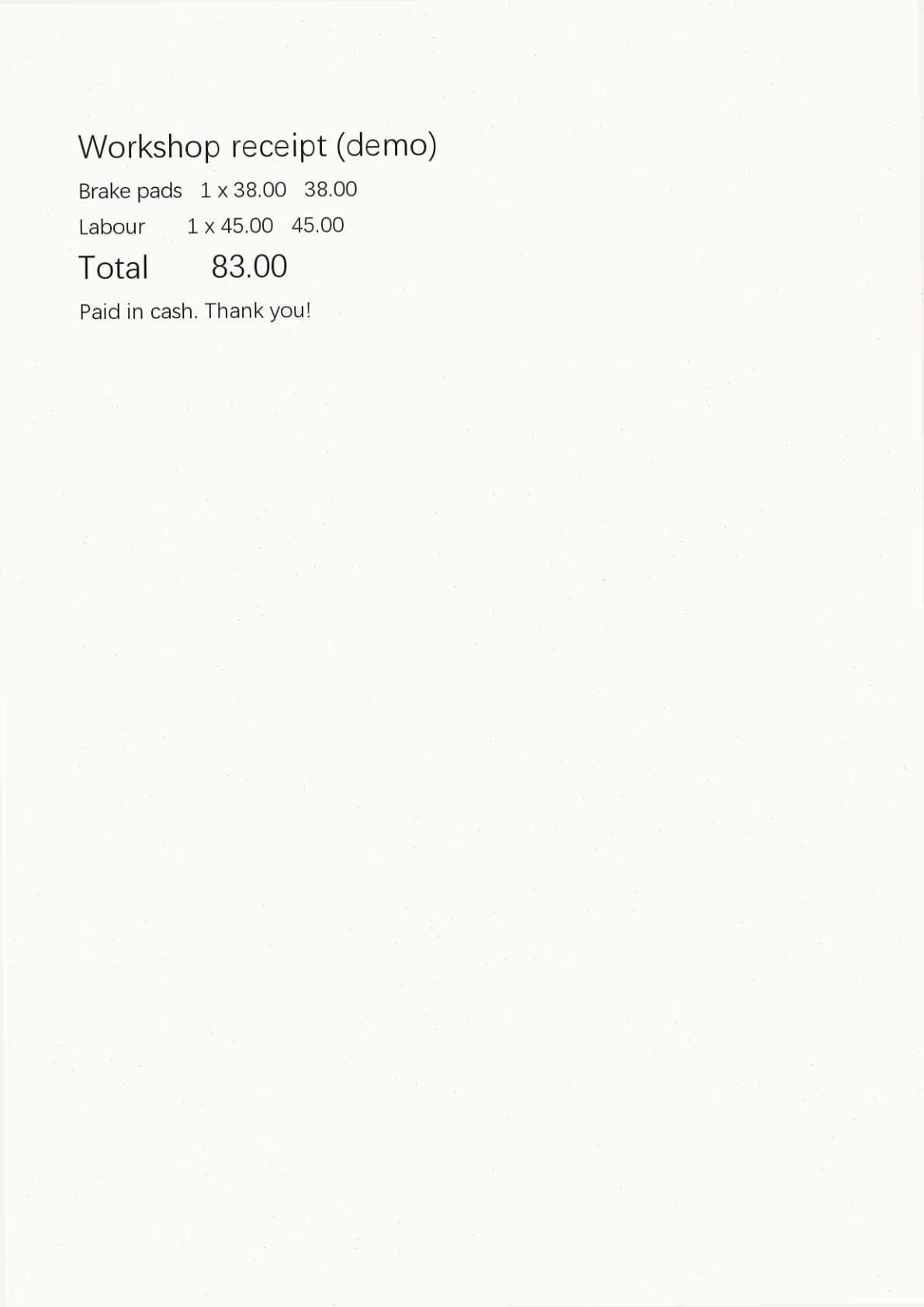
2), keep PNG and High (144 dpi), press Render. Page 2 of mixed.pdf came out at1191×1684 px · 235 KBon screen (240,895 bytes on disk). - OCR that single image. Open Image to text, sign in, add the PNG. The browser shrinks it to at most 1600 px on the long edge before sending (ours became
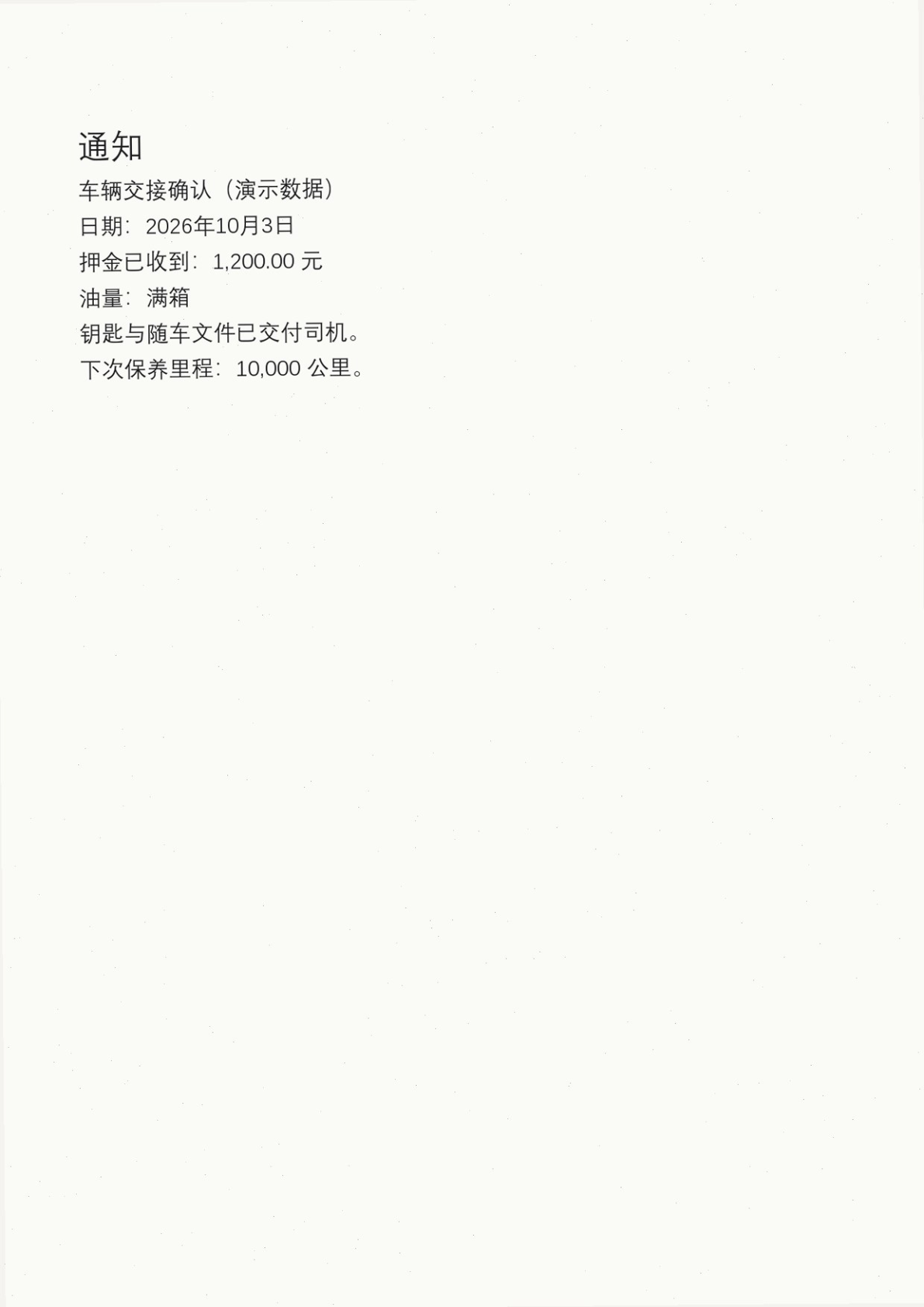
1132×1600 px · 36 KB), keep Output language: Same as the image text, and press the run button — it consumes 1 of your 3 site-wide free trials. - Proofread, fix, then copy. The recognized text appears in an editable box. Compare every number with the original, fix anything the OCR misread, then copy. Results are kept for 24 hours, then become unavailable.
| OCR input (rendered at 144 dpi) | AI result | Cost |
|---|---|---|
| Receipt photo (1191×1684 → 1132×1600 px) | All 5 lines exact: Brake pads 1 x 38.00 38.00, Labour 1 x 45.00 45.00, Total 83.00… | 1 trial (3 → 2 left) |
| Chinese notice (1191×1684 → 1132×1600 px) | All 7 lines exact: 日期:2026年10月3日, 押金已收到:1,200.00 元, 下次保养里程:10,000 公里。 | 1 trial (2 → 1 left) |
Both production tasks succeeded in seconds with no retry. Clean, well-sized print (like our samples — body text ≈ 27 px after downscaling) OCRs well; faint, tiny or handwritten text will not fare as well, and characters the AI cannot read are marked [?] instead of guessed.
Encrypted or damaged files take a different path
No extraction setting helps here — the file itself refuses to open. We verified both error paths with downloadable samples:
| File | English message | Chinese message |
|---|---|---|
encrypted-demo.pdf (password: yysi-demo) | This PDF is password-protected and cannot be read here. | 该 PDF 已加密,无法在此读取。 |
| corrupt-demo.pdf (truncated on purpose) | This file is not a readable PDF (it may be damaged). | 该文件不是可读取的 PDF(可能已损坏)。 |
For encrypted files, ask the sender for the password or an unprotected copy — removing protection from a file you don't own is not something to attempt with an online tool. For damaged files, request a fresh copy; partial files stay partial. Need to split or reorder a working PDF first? Organize PDF handles pages; merge PDF combines files.
Limits and known failures
- PDF tools: one PDF at a time, up to 50 MB and 100 pages; everything runs in your browser and files are never uploaded.
- Extraction follows the PDF's internal text layout: multi-column pages interleave (shown above), tables lose cell borders, and line breaks appear where the file put them — not where a human would put them.
- No OCR inside PDF to text — by design it reports empty scan pages instead of inventing text.
- Image to text: one image per task, up to 10 MB, downscaled to ≤1600 px on the long edge (costs accuracy on very small print); complex tables and multi-page scans are out of scope; results expire after 24 hours.
- AI tasks use 1 of your 3 site-wide free trials each (never reset); the browser-based PDF tools need no account at all.
- Font subtleties: a text layer built with unusual encodings can extract with wrong characters. If output text looks like gibberish while the layout is fine, OCR of the rendered page is the pragmatic fallback — same route as a scan.
Try it with our samples
Everything below is the exact material from our runs (YYSI-made synthetic documents; the password in the encrypted demo is published on purpose). expected-* files list what should be readable; extracted-* and ocr-result-* files are the actual outputs of the runs, so you can diff your own attempt against ours.
- report-text.pdf — Case 1: text layer, two-column + table + Chinese — Download sample · 51933 bytes
- scan-no-text.pdf — Case 2: pure scan, no text layer — Download sample · 206333 bytes
- mixed.pdf — Case 3: text pages around one scan page — Download sample · 118361 bytes
- encrypted-demo.pdf — password error demo (password: yysi-demo) — Download sample · 17557 bytes
- corrupt-demo.pdf — damaged-file error demo — Download sample · 9271 bytes
- expected-report-text.txt — what report-text.pdf should contain — Download sample · 1580 bytes
- expected-scan-text.txt — what the scan pages show (only OCR can recover) — Download sample · 701 bytes
- expected-mixed-text.txt — what mixed.pdf should contain — Download sample · 845 bytes
- extracted-report-text.txt — actual PDF to text output (1,356 bytes) — Download sample · 1356 bytes
- extracted-mixed.txt — actual PDF to text output (502 bytes) — Download sample · 502 bytes
- ocr-input-mixed-p2.png — the rendered receipt page we OCR'd (240,895 bytes) — Download sample · 240895 bytes
- ocr-input-scan-p2.png — the rendered Chinese notice page (270,343 bytes) — Download sample · 270343 bytes
- ocr-result-mixed-p2.txt — actual AI transcription of the receipt — Download sample · 110 bytes
- ocr-result-scan-p2.txt — actual AI transcription of the Chinese notice — Download sample · 194 bytes
SHA-256 checksums are shown next to each download so you can confirm the file you received is the file we tested. Sources for the capability claims are the tool pages linked above (checked 2026-11-11); the scanned-PDF definition follows Adobe's help page on scanned documents.
Sources & verification
- YYSI PDF to text — capabilities, limits and honest scanned-page behavior observed in engine source (pdf-to-text.js) and live pages — Sources checked 2026-11-11
- YYSI Image to text — single-image AI transcription limits, 1600 px downscale, [?] convention, 24 h retention; live page + engine source — Sources checked 2026-11-11
- YYSI PDF to images — page ranges, PNG/JPG, 72/144/216 dpi scales, per-page 8 MP cap; live page + engine source — Sources checked 2026-11-11
- Adobe Help Center: a scanned PDF is an image of text; OCR converts it to selectable, editable text (official definition used for the scan/OCR distinction) — Sources checked 2026-11-11
Sources checked Every number, quote and output below comes from YYSI's own runs on 2026-11-11: local Chromium (Windows 11) against the workspace build whose asset hashes match the live pages, plus two production image-to-text tasks on a standard test account (task ids t_787d4a1d7fbbbcbcec89786f, t_67ff14e50b63d0fba9fb8301; trials 3→1, no account or ledger changes). The Adobe link is the only external claim; all samples are YYSI-made synthetic files published for download.
Read our editorial standards or send corrections to [email protected].